The Stage output window
The Stage output window is where you add screens and decide, for each one, where it goes and which layers it shows. Fill & key for a switcher is set up here too. It is a window of its own beside LayerCue, not a sheet inside it, so you can keep it open and carry on running the show.
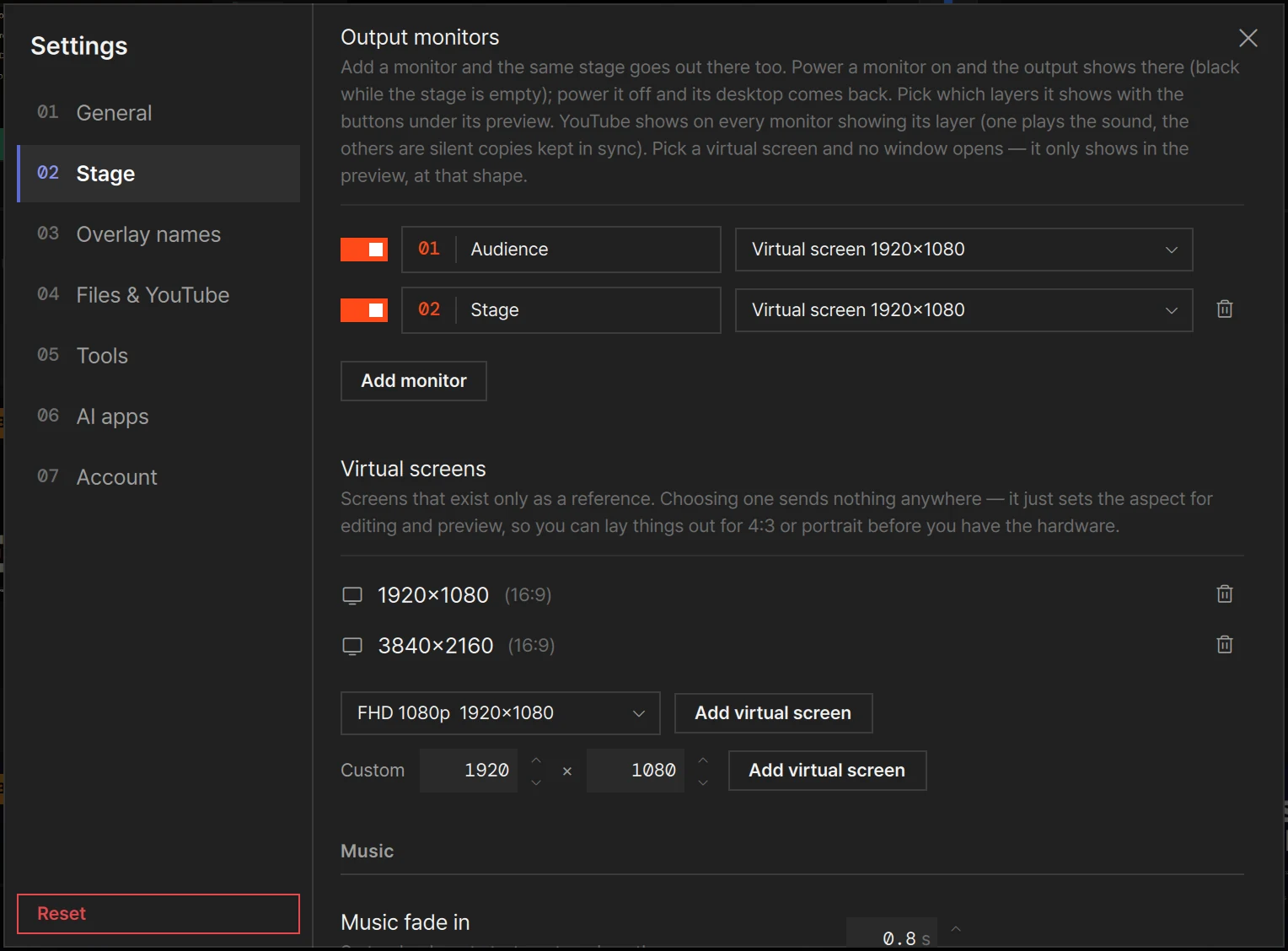
What the screens are and how they share one stage is in Multi-Output. The tile, the power switch and choosing a screen are in Screens and going live.
Opening it
Section titled “Opening it”| Where | What to click |
|---|---|
| Under the second preview tile, at the right | Stage output (with ↗). It is there once you have two or more screens. While the window is open the button stays filled; click it again to close the window (tooltips Open in a window and Close window) |
| The control row at the bottom of the stage tile | A small sliders button (tooltip Stage output). With only one screen there is no second tile, so the button is here instead, before the speaker |
| The panel of a screen’s tab | Stage output at the bottom — see Choosing the screen |
| The status bar’s on-air list | Stage output at the bottom of the list — see Multi-Output |
| Settings › Stage | Open stage output on the Output monitors row |
The window first opens on the monitor the LayerCue window is on, at the side of the LayerCue window,
level with its top. If there is no room on either side, it opens at the edge of the screen, over the
app — the LayerCue window itself never moves out of the way. Drag it wherever suits you, onto another
monitor too, and resize it if you like. It remembers where you put it and its size — with the same
monitors plugged in, it opens there next time (each set of monitors is kept apart). If that monitor is
gone, or it is a monitor that is on air, it opens beside the LayerCue window. To drop the remembered
place and put it back beside the LayerCue window, hold Option / Alt while you click the button that
opens it (on the Mac, Window › Reset Window Positions too). ✕ closes it, and so does ⌘W on the
Mac. Opening or closing the window changes nothing in the output.
The title row
Section titled “The title row”At the top: Stage output with ⓘ (a short explanation), and ON AIR 1/2 — how many are going out right now, out of how many there are. It turns orange while any is on air. At the right are the two buttons that add a row.
| Button | What it adds |
|---|---|
| + Add screen | A screen — a monitor or a projector, or another place to send the stage. It starts on a plugged-in external screen that no other screen uses, then on a free Blackmagic device (Mac), and otherwise on Pick a screen. Its power is on and it shows every layer, so if its screen is plugged in, the output appears there at once. Its row opens, ready for you to choose Send to |
| + Add fill & key | A fill and a key for a switcher, as one row — see Fill & key and Blackmagic SDI |
The Layout board
Section titled “The Layout board”Under Layout is a small board with a tile for each screen — a fill & key is one tile — and a LayerCue marker for this computer. It is a picture for you: lay it out like your venue and you can see at a glance what is where. It changes nothing about what goes out.
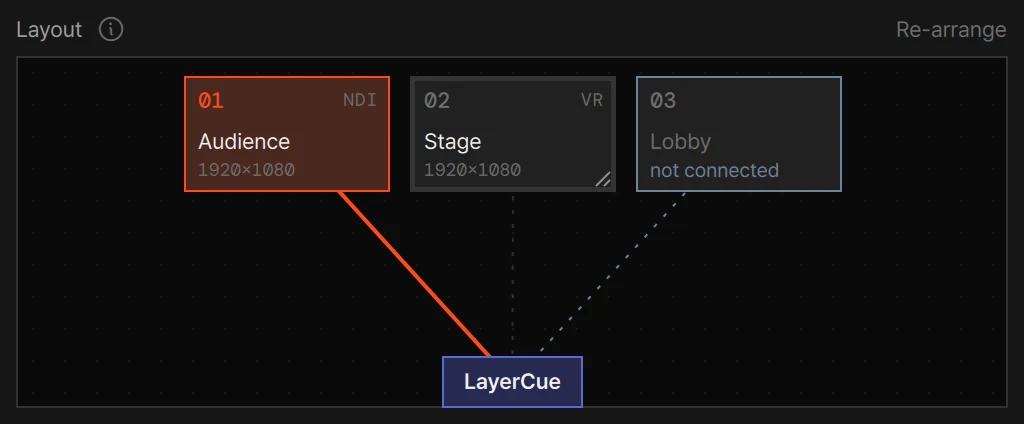
- Drag a tile to where you want it. As you drag, it snaps into line with the other tiles — their edges or centres — or sits beside one at an even gap, and it lines up with the centre of the LayerCue marker. A thin guide line shows what it lined up with.
- Drag LayerCue and the tiles come along with it, each keeping its place around it.
- Resize a tile with the handle at its bottom-right corner, which shows while the pointer is on the tile or the tile is selected (tooltip Drag to resize · double-click for the default size). The tile keeps its shape, and takes the same size as another tile when it comes close to its height. Double-click the handle for the default size.
- Re-arrange, at the right above the board, lines up the tiles you have moved in front of LayerCue again. Their sizes stay.
- Click a tile to open its row in the list below. Pointing at a tile lights up its row, and pointing at a row lights up its tile.
Until you move anything, the tiles stand in a row in front of LayerCue, which starts at the bottom centre. Each tile has its screen’s shape, all at the same height — a portrait screen a little taller.
| On a tile | What it means |
|---|---|
| The number, top left | 01, 02 … A fill & key that uses two outputs shows both, such as 02·03 |
| Letters, top right | How it goes out: SDI a Blackmagic device, NDI NDI®, SY Syphon, VR a virtual screen, F&K a fill & key. A monitor has none |
| The name and resolution | The resolution in pixels — or not connected when the screen has nowhere to go (see below). A tile made very small shows only its number |
A line runs from LayerCue to every tile:
| Line | What it means |
|---|---|
| Solid orange, with an orange border on the tile | On air |
| Dashed | The power is on, but nothing is going out right now — a virtual screen, for one |
| Very faint dots, with dim text on the tile | The power is off |
| Grey-blue dots, with a grey-blue border | Nowhere to go — on or off |
A selected tile keeps its colour; only its border gets thicker.
The list of screens
Section titled “The list of screens”Below the board is a row for each screen, and one for each fill & key. A closed row has two lines:
- The number, the name, the state and the power switch.
- Where it goes, and the Layers shown strip. Where it goes is the screen’s name and resolution (with the SDI format for a Blackmagic device), or the name, resolution and frame rate it is sent under over NDI® or Syphon. The seven cells B F 1 2 3 4 5 are the same as the ones under its tile in the top band — see Layers shown. With Audio on in an NDI® or Blackmagic row, the line ends with something like Audio 70%.
| State | What it means |
|---|---|
| On air, with an orange dot | It is going out now. An NDI® row adds how many receivers are connected, such as On air · 2 receiving |
| Off, with a dim dot | The power is off |
| Preview only | A virtual screen: it shows only in its tile in the top band |
| not connected, in grey-blue | The chosen screen is not plugged in — see below |
| Pick a screen, in grey-blue | Nothing is chosen to send to yet |
To rename a screen, point at its row and click the ✎ that appears after the name (tooltip Rename). Type a name of up to 24 characters, and press Enter to keep it or Esc to cancel — clicking somewhere else keeps it too. Left empty, the screen is called Screen 2, Screen 3 and so on.
Click anywhere else on a row’s two lines to open it. One row is open at a time; opening another closes it. An open row has:
| Send to | Where this screen goes. It is the same list as Screen in a tab’s panel (see Choosing the screen): the screens and Blackmagic devices that are plugged in, Network · apps (NDI® and Syphon), screens that are not plugged in, and the virtual screens. Blackmagic devices and Syphon are Mac only; NDI® works on the Mac and Windows |
| ⓘ after it | A note on the place you chose, when there is one — for a virtual screen, NDI® or Syphon |
| The trash button | Removes the screen (Screen 2 on; tooltip Remove). It is dimmed while the screen is on air: On air — turn its power off first. When you remove a screen, the ones after it move up a number |
| Options for the device | Only what the chosen place needs: SDI format for a Blackmagic device; Name, Resolution, Frame rate (NDI® only) and Alpha for NDI® and Syphon. See Fill & key and Blackmagic SDI and NDI® and Syphon |
| Audio | NDI® and Blackmagic rows only: Off · On and a volume — puts the stage sound into that output. See Sound and the meter |
A fill & key row works the same way, with F&K after its name: one row, with two numbers when it uses two outputs, and its fill, key and keying options inside. See Fill & key and Blackmagic SDI.
When a row has nowhere to go
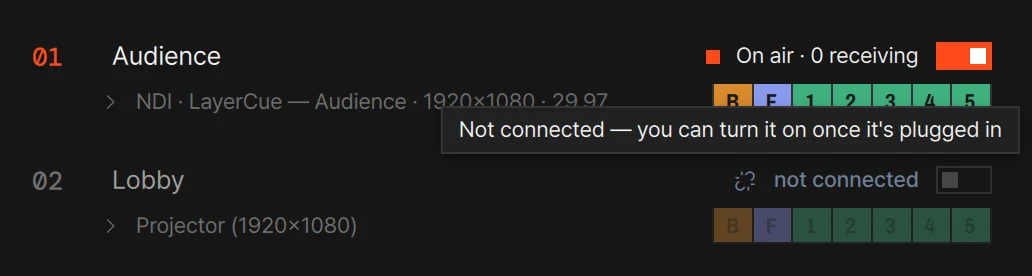
Section titled “When a row has nowhere to go”If a screen’s chosen place is not plugged in — a virtual screen does not count — or nothing is chosen yet, its row says so all the time, whether the power is on or off: not connected or Pick a screen in grey-blue, with a broken-link icon instead of the dot. Then only Send to, and the trash button, still work:
- The power switch is locked — dimmed, and clicking it does nothing. Its tooltip says why: Not connected — you can turn it on once it’s plugged in, or Pick where to send first.
- A screen that was on when it was unplugged keeps its switch on, with the tooltip It was on when it disconnected — it resumes once plugged back in. Plug it back in and the output comes back by itself.
- The Layers shown strip and the device options are dimmed and cannot be changed.
- On the Layout board, its tile and line turn grey-blue, with not connected in place of the resolution.
Virtual screens
Section titled “Virtual screens”Virtual screens are not made in this window. They are in Settings › Stage, under Virtual screens, where there are two to begin with, 1920×1080 and 3840×2160. Here you only pick one, under Send to — see Virtual screens.
Things to know
Section titled “Things to know”- Everything here is kept on this computer — the screens, names, power, layers and the layout. It is not saved in cue sheets or presentations, and it does not travel with your account.
- The window scrolls with the mouse wheel, the trackpad or the scroll bar. Dragging inside it moves tiles; it does not scroll.
- Changes act at once, during the show too. There is nothing to save or apply.
NDI® is a registered trademark of Vizrt NDI AB.