Keyboard shortcuts
The keys are the same on both systems: where a Mac uses ⌘ (Command), Windows uses Ctrl, and
Option on a Mac is Alt on Windows. On a Mac the keys use ⌘, not Control — ⌃1 does
not clear anything.
Esc does not stop output
Section titled “Esc does not stop output”Esc is the key your hand reaches for by accident, and a screen that suddenly goes dark cannot
be taken back. In the main window Esc does one thing at a time:
- Cancels a slide you are dragging
- Otherwise, clears the selection
- Otherwise, while a monitor is on air, leaves the screens up and tells you how to stop: On air — to stop, use the power switch above the preview or ✕ on the output screen
When you are typing in a field, Esc belongs to that field. In the slide editor it does
something else again — see Esc in the editor.
Moving through slides
Section titled “Moving through slides”| Key | What it does |
|---|---|
→ / ← |
Sends out the next / previous slide |
↓ / ↑ |
Sends out the slide one row down / up |
Page Down / Page Up |
Sends out the slide three rows down / up |
Home / End |
Sends out the first / last slide of the presentation |
Return / Enter |
Sends out the slide you are on |
Option / Alt + an arrow, Home, End, Page Up or Page Down |
Moves only — nothing goes out |
Shift + an arrow, Home, End, Page Up or Page Down |
Widens the selection — nothing goes out |
↓ jumps a whole row. With four cards to a row, it sends out the slide four places on, not
the next one. Use → to go one at a time.
- The plain keys count from the slide that went out last, not from the one you selected —
so
→is always the one after what the room is seeing. - They stay inside one presentation. At its last slide
→does nothing; to go on to the next presentation, click its first slide. Pressing past the end does not restart a video that is playing. - To look ahead during the show without touching the screen, hold
Option/Altand use the arrows, then pressReturn/Enterto send the slide you landed on.
These keys work while the slide list has the keyboard. If they seem dead — after you typed in a field, for example — click a slide’s name or an empty spot between the slides. (Clicking a slide’s picture sends it out.)
Stepping a video frame by frame
Section titled “Stepping a video frame by frame”In Slide settings, click the progress bar. Now ← / → step that preview one frame back or
forward, and Shift + ← / → ten frames. Only the preview moves — the stage does not. Handy
for setting In point and Out point on exactly the right frame. See
Slide settings.
The slide list
Section titled “The slide list”These work in Show, on the presentation you are in. Apart from undo, redo, ⌘\ / Ctrl+\
and Find, they need the slide list to have the keyboard, as above.
| What it does | Mac | Windows |
|---|---|---|
| Select every slide in the presentation | ⌘A |
Ctrl+A |
| Copy · cut · paste | ⌘C · ⌘X · ⌘V |
Ctrl+C · Ctrl+X · Ctrl+V |
| Duplicate the selected slides | ⌘D |
Ctrl+D |
| Delete the selected slides | ⌫ |
Delete or Backspace |
| Move the selected slides one place earlier · later | ⌥⌘← · ⌥⌘→ |
Ctrl+Alt+← · Ctrl+Alt+→ |
| Move them to the start · end of the presentation | ⌥⌘↑ · ⌥⌘↓ |
Ctrl+Alt+↑ · Ctrl+Alt+↓ |
| Undo | ⌘Z |
Ctrl+Z |
| Redo | ⇧⌘Z or ⌘Y |
Ctrl+Y |
| Bigger · smaller slide cards | ⌘= · ⌘- |
Ctrl+= · Ctrl+- |
| Show or hide the sidebar | ⌘\ (or ⌘B) |
Ctrl+\ (or Ctrl+B) |
| Open Find | ⌘F |
Ctrl+F |
- Paste puts the slides after the last selected slide, or at the end when nothing is selected. It also takes what you copied in another app: files, a picture, a YouTube address, or text. Text becomes text slides, split at blank lines and again wherever a piece is too long for the box.
- Cut does not remove anything yet. The slides stay where they are until you paste them.
- Delete asks first only when one of the slides is live, or when you delete ten or more. Otherwise the slides go at once, and the notice that follows has an Undo button.
- Undo goes back up to 50 steps. It also brings back a library, presentation or cue sheet you deleted.
Clicks with a key held
Section titled “Clicks with a key held”| Do this | What happens |
|---|---|
| Click a slide’s picture | Sends it out |
| Double-click the picture | Sends it out again from the beginning |
Click the name under the picture, or Option-click / Alt-click anywhere on the card |
Loads it into Slide settings only. Nothing goes out |
| Double-click the name | Opens it in the slide editor |
⌘-click / Ctrl-click |
Adds it to the selection, or takes it out |
Shift-click |
Selects every slide from the one you clicked before to this one |
Shift-⌘-click / Shift-Ctrl-click |
Adds that run of slides to the selection |
| Drag from an empty spot — between the cards, in the margins at either side, beside a presentation’s title bar or below the last presentation | Selects every card the band touches. Hold Shift or ⌘ / Ctrl to add to the selection |
| Click an empty spot | Clears the selection |
| Drag slides onto another presentation | Copies them. Hold Option / Alt as you let go to move them instead |
That is what Option + slide to load (on Windows, Alt + slide to load) beside the Slide settings heading means.
The Find panel
Section titled “The Find panel”⌘F / Ctrl+F opens it. See Find.
| Key | What it does |
|---|---|
↑ ↓ |
Move the highlight |
Return / Enter |
Open the highlighted result. Nothing goes out |
Esc |
Close without going anywhere |
Number fields
Section titled “Number fields”The number fields in the slide editor — its ribbon and the panels that open from it — and in Settings change without typing:
- Drag the field’s name or icon left or right.
- Turn the scroll wheel over the number.
- Click the small up and down arrows beside it.
Hold Shift while you do any of these for ten times the step, or Option / Alt for a
tenth of it. To type a value, click the number, type, and press Return / Enter. While you
are typing in it, ↑ / ↓ step the value too.
The slide editor
Section titled “The slide editor”Most keys act on the boxes on the slide. After you click a slide in the left column, they act on slides instead — until you click on the slide itself again.
| What it does | Mac | Windows |
|---|---|---|
| Undo · redo (also while typing) | ⌘Z · ⇧⌘Z or ⌘Y |
Ctrl+Z · Ctrl+Y |
| Select every box (every slide, after clicking the column) | ⌘A |
Ctrl+A |
| Copy · cut the selected boxes (slides, after clicking the column) | ⌘C · ⌘X |
Ctrl+C · Ctrl+X |
| Paste — boxes onto this slide, slides after this slide | ⌘V |
Ctrl+V |
| Duplicate the selected boxes (the slide, after clicking the column) | ⌘D |
Ctrl+D |
| Delete the selected boxes (slides, after clicking the column) | ⌫ |
Delete or Backspace |
| Copy style of a text box · Paste style onto the selected boxes | ⌥⌘C · ⌥⌘V |
Ctrl+Alt+C · Ctrl+Alt+V |
| Bold · italic · underline | ⌘B · ⌘I · ⌘U |
Ctrl+B · Ctrl+I · Ctrl+U |
| Forward · Backward | ⌘] · ⌘[ |
Ctrl+] · Ctrl+[ |
| To front · To back | ⇧⌘] · ⇧⌘[ |
Ctrl+Shift+] · Ctrl+Shift+[ |
| Start typing in the selected box, at the end | Return |
Enter |
| Select the next · previous box | Tab · Shift+Tab |
Tab · Shift+Tab |
| Move the selected boxes 10 px · 100 px · 1 px | arrows · Shift + arrows · Option + arrows |
arrows · Shift + arrows · Alt + arrows |
| Open the slide above · below (after clicking the column) | ↑ · ↓ |
↑ · ↓ |
- On the slide, with no box selected,
⌫/Deletedoes nothing. It never deletes the slide you are on. In the left column it does delete the slide —⌘Z/Ctrl+Zbrings it back. - In the left column, cut takes the slides out at once; paste puts them after the slide you are editing.
- Bold, italic and underline go on the selected words while you type, and on every selected box otherwise.
- The pixel steps are measured on a 1920-wide slide, the same distance across and down.
⌘A/Ctrl+AandTabskip a box whose role is Backdrop, and To back stops just above it. See Design tools.- Copy style works on text boxes only. In Show the same two commands are on a card’s right-click menu.
- While editing is locked, the keys that change the slide — Paste style included — change nothing and answer Editing is locked while presenting.
While you type
Section titled “While you type”| What it does | Mac | Windows |
|---|---|---|
| Split the slide at the cursor | ⌘Return |
Ctrl+Enter |
| At the very start of the text: join this slide onto the one before | ⌘⌫ |
Ctrl+Backspace |
| At the very end of the text: pull the next slide in | ⌘⌦ (forward delete) |
Ctrl+Delete |
| Stop typing | Esc |
Esc |
The joining keys work only with no words selected, and only at the very start or end — in the middle of the text they do what they always do.
Esc in the editor
Section titled “Esc in the editor”Esc backs out one step at a time: it cancels a drag, then stops typing, then puts down a
drawing tool, then clears the selection. When there is nothing left to back out of, it leaves
the editor and goes back to Show. Right after it clears a selection it waits a moment, so a
quick double press does not throw you out.
Clicks and drags with a key held
Section titled “Clicks and drags with a key held”| Do this | What happens |
|---|---|
| Double-click a text box | Starts typing where you clicked |
⌘-click / Ctrl-click a box |
Adds it to the selection, or takes it out |
Shift-click a box |
Adds it to the selection |
Option-click / Alt-click |
Selects the box underneath. Each click goes one box deeper |
Option-drag / Alt-drag a box |
Moves a copy, leaving the original where it was |
Shift while moving |
Keeps to one direction, across or down |
⌘ / Ctrl while moving, resizing or drawing |
No snapping |
Shift on a corner handle |
Keeps the proportions. Pictures, SVG drawings and icons keep them anyway — for those, Shift lets them go |
Shift on the rotation knob |
Turns the box in 15° steps |
Shift while drawing a shape |
Keeps it square — a circle for an ellipse |
Option / Alt while drawing |
Draws out from the point where you started |
| Click with a drawing tool, without dragging | Puts the shape down at its default size |
Shift while dragging a selection band |
Adds the boxes it covers to the selection |
⌘ / Ctrl while dragging a selection band |
Flips the boxes it covers in or out of the selection |
⌘-click / Ctrl-click a slide in the left column |
Adds it to the selection, or takes it out |
Shift-click a slide in the left column |
Selects every slide from the one you clicked before to this one |
| Double-click a slide in the left column | Sends it out |
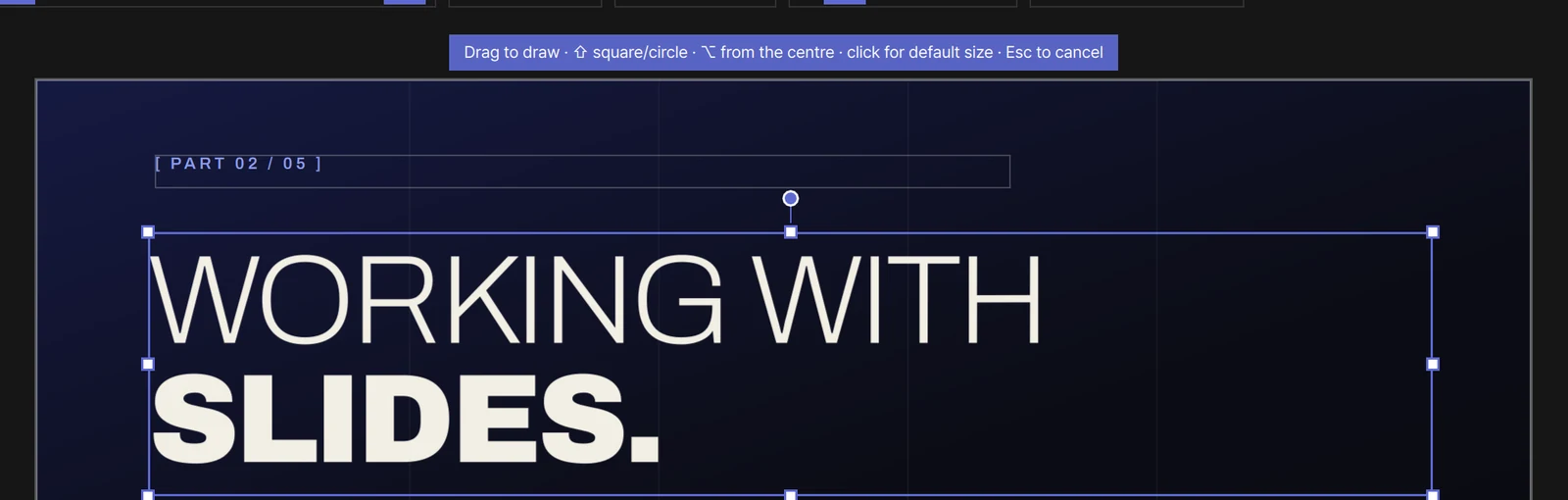
While the Rectangle or Ellipse tool is in your hand, a line
above the slide sums this up: Drag to draw · ⇧ square/circle · ⌥ from the centre · click for
default size · Esc to cancel. On Windows it shows the same symbols — ⇧ is Shift and ⌥ is
Alt.
Picking a colour from the screen
Section titled “Picking a colour from the screen”The eyedropper button in the colour panel (Pick from screen) takes a colour from anywhere on your screens. A magnifier follows the pointer.
| What it does | Mac | Windows |
|---|---|---|
| Take the colour under the pointer | Click | Click, Enter or Space |
| Give up without taking a colour | Esc |
Esc or right-click |
| Move the pointer 1 px · 10 px | — | Arrow keys · Shift + arrow keys |
On a Mac the magnifier is the system’s own. On Windows it is live — a video playing under it plays in the magnifier too — and it is never drawn over an output window, so the audience does not see it, though you can still pick colours there. Switching to another window also gives up.
More about the editor in The slide editor and Design tools.