Connect an AI app
An AI app on your computer can use LayerCue as a tool. Ask it in plain words — “make a cue sheet for Sunday”, “split these lyrics into slides, two lines each” — and the work happens in LayerCue, where you can see it and take it back.
LayerCue has no AI of its own. The AI app does the thinking, and LayerCue does what it asks. The two talk through MCP (Model Context Protocol), the common way AI apps use programs on a computer. LayerCue and the AI app talk only on this computer, and only while LayerCue is open — though what the AI app reads, such as lyrics and cue sheets, may be sent on to that AI service (see What the AI app gets to see).
Which AI apps
Section titled “Which AI apps”| Claude Desktop · LM Studio · Cursor | One button in LayerCue connects them — see below |
| Claude Code · Codex · Gemini CLI · VS Code | LayerCue gives you a command or a few lines to paste — see Other AI apps |
| Any other app that supports MCP | The same way, under Others |
| Not yet | ChatGPT (web, desktop and phone), the Gemini app and website, and Claude in a browser (claude.ai) or on a phone. With these you can still copy slides out and paste the answer back |
Connecting Claude Desktop, LM Studio or Cursor
Section titled “Connecting Claude Desktop, LM Studio or Cursor”- Click the gear at the far right of the status bar to open Settings, and choose AI apps. If you have not signed in yet, the Settings window asks you to first — see Install.
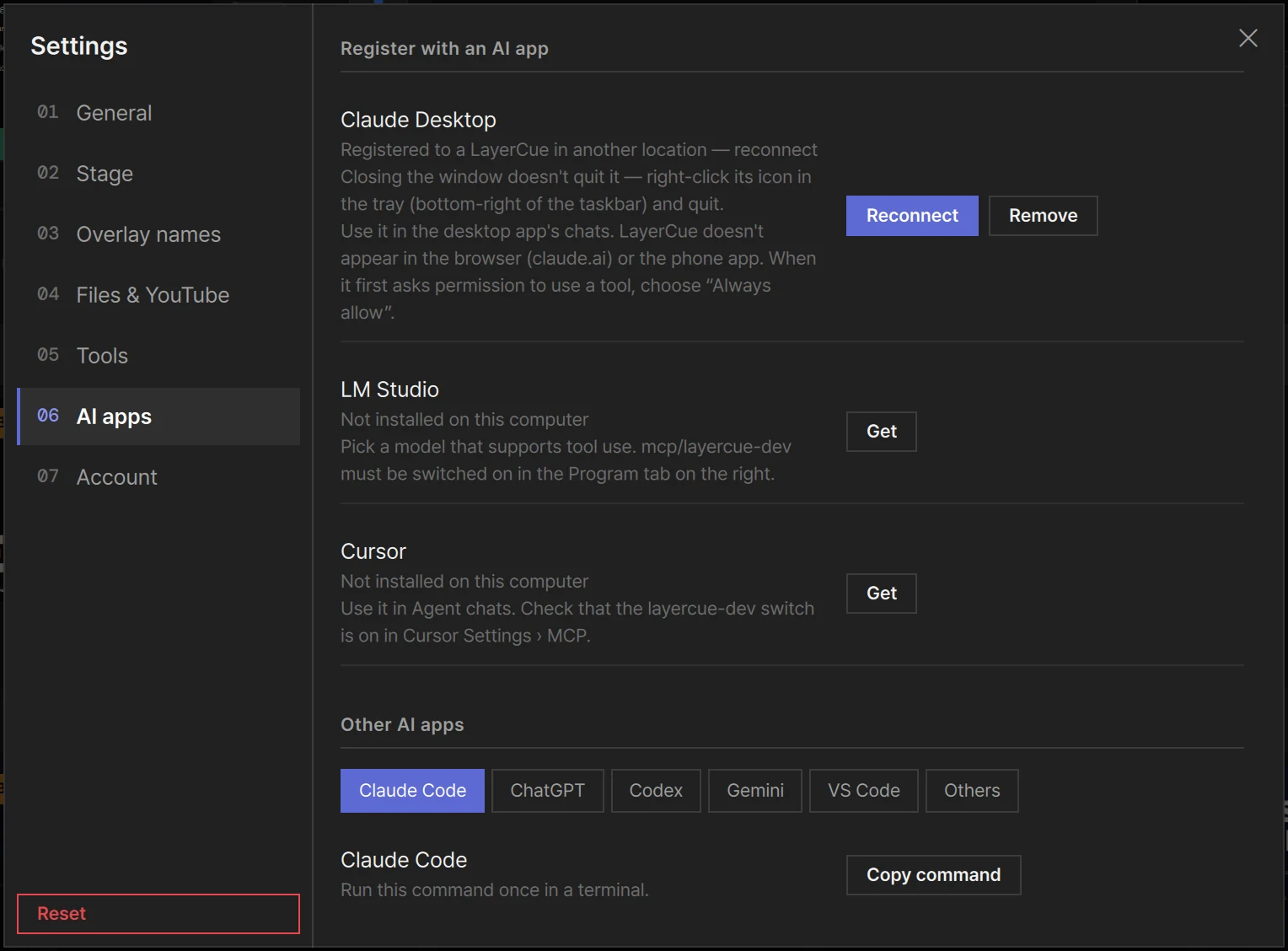
- Under Register with an AI app there is a row each for Claude Desktop, LM Studio and Cursor. Press Connect on the one you use.
- Registered with … Quit that app completely and reopen it — you’ll be told here when it attaches. appears.
- Quit the AI app completely, then open it again. Closing its window is not enough. On a Mac,
quit it with
⌘Q. On Windows, right-click its icon in the tray at the bottom right of the taskbar and quit it there. - When it attaches, … connected — in a new chat, try “What’s the LayerCue status?” appears (even if you have closed Settings by then), and the row shows a green Connected. Start a new chat in the AI app and ask exactly that.
It does not matter which you open first, LayerCue or the AI app.
Reading the page
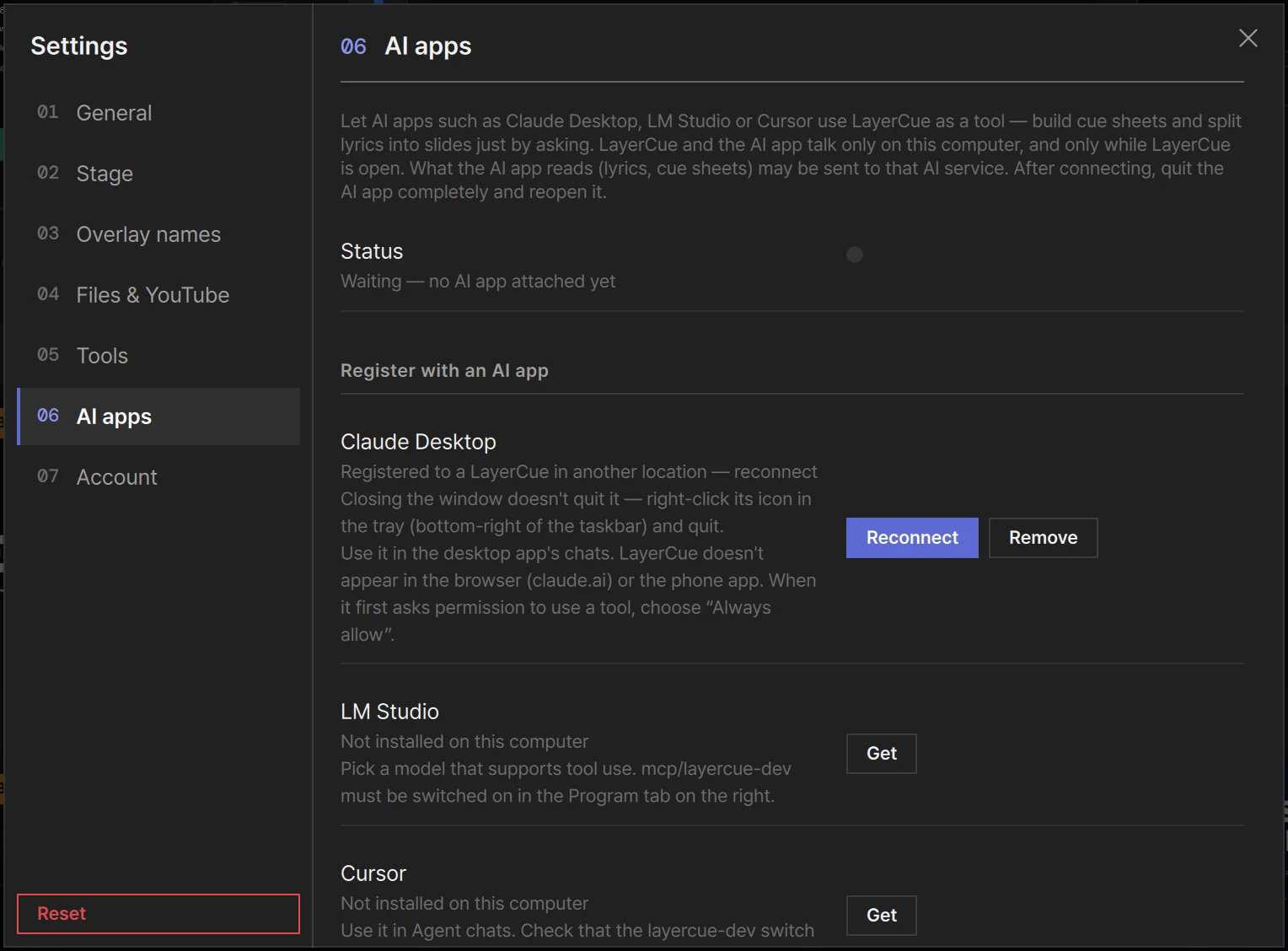
Section titled “Reading the page”The line at the very top says what the page is for, and ends with the step people miss: after connecting, quit the AI app completely and reopen it. Under it, the Status line says whether any AI app is using LayerCue right now.
| Status | What it means |
|---|---|
| Waiting — no AI app attached yet | LayerCue is ready. No AI app is attached at the moment |
| Claude Desktop — attached now, with a green dot | These apps are attached. When there are several, they are listed with · between them |
| Not running — try restarting LayerCue | LayerCue could not open its side of the connection. Quit LayerCue and open it again |
Each app’s row says where that app stands.
| The row says | Button | What to do |
|---|---|---|
| Not installed on this computer | Get | Get opens the app’s website. LayerCue goes by the app’s settings folder — if the app is installed, open it once, then come back to this page |
| Not registered — press Connect, then quit that app completely and reopen it. | Connect | Press Connect, then do what it says |
| Registered — not attached yet. Quit that app completely and reopen it. | Remove | Do what it says |
| Registered — not attached right now (last attached …). Open that app to attach. | Remove | It has worked before. Open the app |
| Connected — LayerCue tools are ready in this app, with a green Connected | Remove | Nothing — go and ask |
| Registered to a LayerCue in another location — reconnect | Reconnect · Remove | The app was set up for a LayerCue that is somewhere else — for example, after LayerCue was moved. Press Reconnect, then quit and reopen the AI app |
| Its settings file can’t be read, so it was left untouched | Show file | See below |
Under Not registered, Registered — not attached yet and Registered to a LayerCue in another location, one more line says what quitting completely means: on a Mac, Closing the window doesn’t quit it — use ⌘Q.; on Windows, Closing the window doesn’t quit it — right-click its icon in the tray (bottom-right of the taskbar) and quit.
Under each row there is also a line on using LayerCue in that app:
- Claude Desktop — Use it in the desktop app’s chats. LayerCue doesn’t appear in the browser (claude.ai) or the phone app. When it first asks permission to use a tool, choose “Always allow”.
- LM Studio — Pick a model that supports tool use. mcp/layercue must be switched on in the Program tab on the right.
- Cursor — Use it in Agent chats. Check that the layercue switch is on in Cursor Settings › MCP.
What Connect changes
Section titled “What Connect changes”Connect adds one entry, named layercue, to that app’s MCP settings file. Everything else in
the file — other tools you have added, the app’s own settings — stays as it was.
| App | Settings file |
|---|---|
| Claude Desktop | Mac: ~/Library/Application Support/Claude/claude_desktop_config.json · Windows: %APPDATA%\Claude\claude_desktop_config.json. For Claude Desktop from the Microsoft Store, LayerCue finds the file inside its package folder |
| LM Studio | .lmstudio/mcp.json in your home folder |
| Cursor | .cursor/mcp.json in your home folder |
- The first time LayerCue changes one of these files, it keeps the original beside it, with
.layercue-backupadded to the name. It only ever does this once, so the backup is the file as it was before LayerCue touched it. - A file LayerCue cannot read is left alone, and the row says Its settings file can’t be read, so it was left untouched. Show file opens its folder in the Finder / File Explorer. Once the file is sorted out, come back to AI apps — the page reads the files again every time you open it.
- LayerCue writes only when you press a button. It never registers itself on its own.
- Remove takes out only LayerCue’s entry: Removed from … Quit that app completely and reopen it to apply.
- If the file cannot be saved, Couldn’t write the settings file: appears with the reason.
Other AI apps
Section titled “Other AI apps”Under Other AI apps, pick an app. A line tells you what to do with it, and the button copies what to paste — with this computer’s LayerCue location already filled in.
| Pick | What to do | Button |
|---|---|---|
| Claude Code | Run this command once in a terminal. | Copy command |
| ChatGPT | Nothing yet — ChatGPT cannot attach programs on this computer. On the OpenAI side, Codex can | — |
| Codex | Paste it at the end of the Codex app/CLI settings file, ~/.codex/config.toml |
Copy config |
| Gemini | The Gemini app and website cannot attach it yet; Gemini CLI can. Paste it into ~/.gemini/settings.json — inside mcpServers if that is already there |
Copy config |
| VS Code | Open MCP: Open User Configuration from the Command Palette and paste it. Use it in Copilot Chat’s agent mode | Copy config |
| Others | Any app that supports MCP: paste it into that app’s MCP settings | Copy config |
After copying you see Copied — paste it into a terminal and run it or Copied — paste it into that app’s MCP settings. When the app attaches, its name shows in the Status line like any other.
Setting it up by hand
Section titled “Setting it up by hand”What an AI app actually starts is a small helper program that comes with LayerCue,
layercue-mcp. It takes no arguments.
| Where the helper is | |
|---|---|
| Mac | Inside the app: LayerCue.app/Contents/MacOS/layercue-mcp — normally /Applications/LayerCue.app/Contents/MacOS/layercue-mcp |
| Windows | %LOCALAPPDATA%\Microsoft\WindowsApps\layercue-mcp.exe, set up by the Microsoft Store version |
Most apps take it in this form:
{ "mcpServers": { "layercue": { "command": "/Applications/LayerCue.app/Contents/MacOS/layercue-mcp", "args": [] } }}Copy config and Copy command fill in the full path for this computer, in the form each app needs, so copying is safer than typing it.
What you can ask for
Section titled “What you can ask for”Talk to it as you would to someone helping you get ready. For example:
- “What’s the LayerCue status?”
- “Make a cue sheet called Sunday Service with Amazing Grace, the sermon and the announcements.”
- “Here are the lyrics. Make a new presentation called It Is Well, two lines per slide.”
- “Make the text on every slide of It Is Well bigger, and put it in the middle.”
- “Redesign the title slide of the sermon — dark background, large white title.”
- “Look at the announcement slides and tell me if any text is too small to read.”
How well it goes depends on the AI app and the model it runs. What LayerCue lets it reach:
| Cue sheets and libraries | List them, make new ones, open a cue sheet, add presentations to it and take them out |
| Presentations | Find them by name or by the words on their slides, make new ones, rename them |
| Slides | Read and write the text, split pasted text into slides, add, delete, move and duplicate slides, choose the layer a slide goes to |
| Style and design | Font, size, bold, colour, alignment — or a whole new layout, with backgrounds, shapes, icons and pictures |
| Pictures | Bring one in from this computer or the web (see below) |
| YouTube | Search, and add a video as a slide. Searching needs the YouTube tool (Settings › Tools) and an internet connection |
| The stage | Send a slide out, next and previous, clear, turn monitors on and off (all of them, or one by its number), volume, background music |
| A few settings | The app’s language, and a presentation’s crossfade, fade-out and layer |
LayerCue checks the slides it makes
Section titled “LayerCue checks the slides it makes”When the AI designs slides, LayerCue draws them itself and tells the AI what is wrong: text that does not fit its box, text too small to read, low contrast, text hidden behind another box, text boxes past the edge of the slide, fonts this computer does not have. The AI is asked to fix what it reports. It can also look at any slides the way LayerCue draws them, so “check my slides” works on slides you made yourself.
Some effects LayerCue does not draw itself — a blur or frosted glass, for example. Those are drawn once into a picture. In the slide editor such a picture can only be moved, resized, faded and rotated (AI-made artwork — only position, size, opacity and rotation change); to change what is in it, ask the AI.
Pictures
Section titled “Pictures”The AI can draw shapes and simple drawings, but a photo has to come from somewhere: a picture already in LayerCue, a file on this computer, or a web address. LayerCue copies it into your media folder (Where your files live).
LayerCue asks the AI to take pictures from the web only from sources that allow free reuse — Unsplash, Pexels, Pixabay, Openverse or Wikimedia Commons, for example — and to tell you where each one came from. Check the source yourself before it goes on a screen in front of people.
Each thing the AI does is one step. ⌘Z / Ctrl+Z takes it back and says
Undone — AI command. You can also ask the AI to undo — it uses the same undo.
- Deleting undoes too. The AI can delete cue sheets, presentations and whole libraries, and
one
⌘Z/Ctrl+Zbrings back everything it deleted in that go. Deleting a cue sheet leaves its presentations where they are; deleting a library takes its presentations with it; the last library cannot be deleted. LayerCue asks the AI to tell you what will go and wait for your yes first — but that is a request to the AI, not a lock. - What happens on the stage cannot be undone. Sending a slide out, clearing, turning monitors on or off, music — these reach the live screens at once. LayerCue tells the AI to do them only when you ask.
- Lock editing holds for the AI too. While editing is locked, LayerCue refuses the AI’s changes to slides. See Screens and going live.
- If the slide editor is open on a slide the AI changes, the change comes in and
Loaded changes made elsewhere appears.
⌘Z/Ctrl+Zinside the editor only goes back to that point — to take back the AI’s change, close the editor and undo from there. If the AI deletes the slide you are editing: The slide you were editing was deleted elsewhere.
What the AI app gets to see
Section titled “What the AI app gets to see”LayerCue answers what the AI asks: the names of your libraries, cue sheets and presentations, the text on slides, what is live, and — when it asks to look — pictures of slides. What happens to it next is up to the AI app, under that app’s own terms.
The connection itself is private to you on this computer. Web pages and other computers cannot reach it, and neither can other user accounts on the same computer.
Without a connection
Section titled “Without a connection”An AI chat that cannot attach to LayerCue — ChatGPT, or Claude in a browser — can still work on your slides. You carry them across and back with copy and paste.
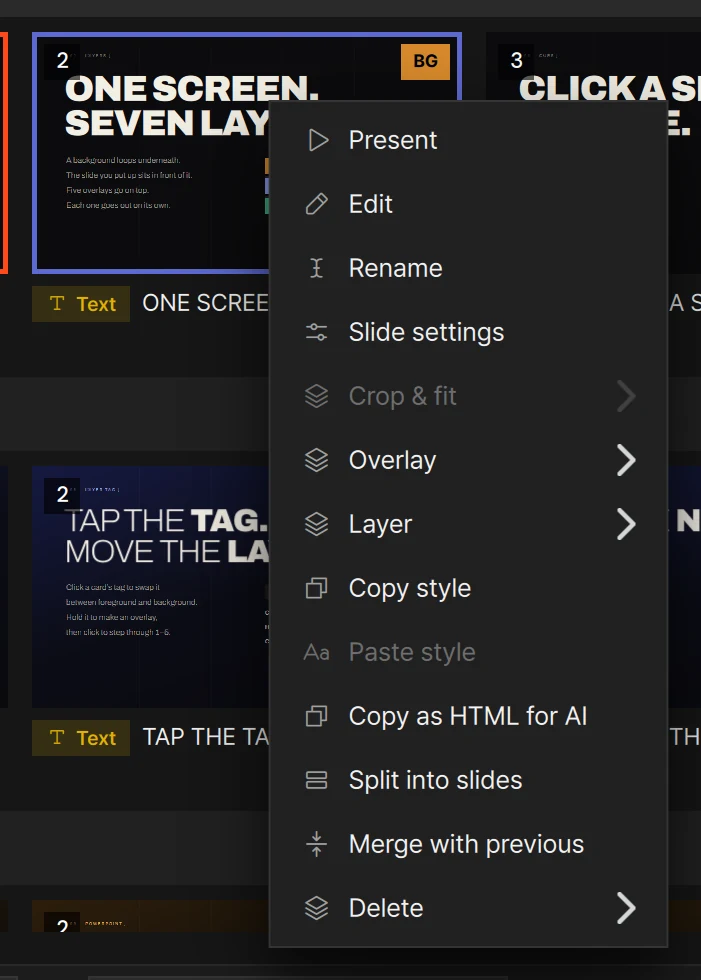
- In the slide list, right-click a text slide and choose Copy as HTML for AI. If that slide is one of several selected, they are all copied. Copied … slide(s) as HTML — paste into an AI chat, then paste its answer into the slide list appears.
- Paste it into the chat and say what you want — “make these easier to read from the back”. The copied text starts with a note telling the AI what it is and how to answer.
- Copy the HTML from the AI’s answer. With the same presentation open, press
⌘V/Ctrl+Vin the slide list. - From HTML: updated …, added … — each slide that came back replaces the one it was copied from, and any new ones go in after the selected slide, or at the end.
One ⌘Z / Ctrl+Z takes the whole paste back (Undone — Paste). If something in the HTML is
wrong, Couldn’t paste the HTML — says what, and nothing changes. Paste it into a different
presentation and every slide comes in as a new one.
Copy as HTML for AI is greyed out on slides that are not text slides.
When it does not work
Section titled “When it does not work”| What happens | What to do |
|---|---|
| The AI says LayerCue is not running | Open LayerCue. The AI app waits a few seconds for it, so ask again once it is open |
| Claude does not seem to know about LayerCue | Use the Claude desktop app, in a new chat. It does not appear in claude.ai in a browser or in the phone app |
| The row keeps saying Registered — not attached yet | Quit the AI app completely — ⌘Q on a Mac; on Windows, right-click its icon in the tray and quit — and open it again |
| LM Studio answers but never uses LayerCue | Pick a model that supports tool use, and switch on mcp/layercue in the Program tab |
| Cursor does not use LayerCue | Use an Agent chat, and check that layercue is switched on in Cursor Settings › MCP |
| Status says Not running — try restarting LayerCue | Quit LayerCue and open it again |
Everything else in the Settings window: Settings. If something here does not behave as described: When something goes wrong.