Presentation settings
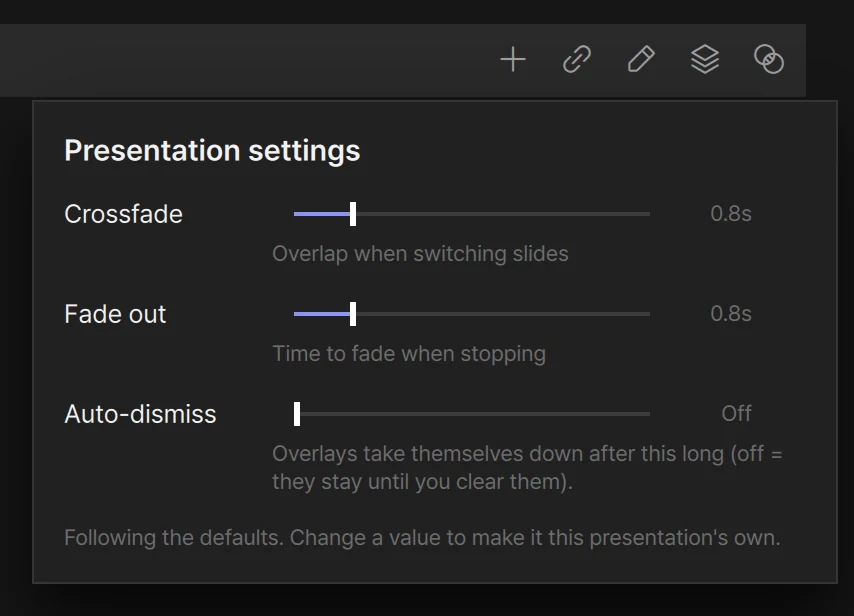
Every presentation carries four values that decide how its slides come in and go out: Crossfade, Fade out, Auto-dismiss and Layer for this list.
The first three follow the defaults in Settings until you change them for one presentation. Always know which of the two you are looking at — a value that follows the defaults changes when someone changes the defaults, even in the middle of a show.
Opening them
Section titled “Opening them”Each presentation in the slide list has a title row above its slides. The buttons at its right end open the settings, right under where you clicked.
| Where | What opens |
|---|---|
| The two overlapping circles (Presentation settings) | A small panel: Crossfade · Fade out · Auto-dismiss |
| The stacked sheets next to it (Layer for this list) | A short list of layers to pick from |
| Right-click the title row | A menu: Edit · Add File · Link · Layer for this list · Presentation settings |
| Right-click a presentation in the sidebar → Presentation settings | A window in the middle with all four values. Close it with Done |
All of these change the same values. They belong to the presentation, not to a cue sheet: put one presentation in two cue sheets and it behaves the same in both. When a cue sheet is selected, every presentation in it has its own title row and its own settings.
The four values
Section titled “The four values”| Value | What it sets | Range | Out of the box |
|---|---|---|---|
| Crossfade | How long a slide takes to come in, overlapping what was there | 0–5 s, in steps of 0.1 | 0.8 s |
| Fade out | How long a slide takes to go when it is taken down | 0–5 s, in steps of 0.1 | 0.8 s |
| Auto-dismiss | How long an overlay stays before it takes itself down | 0–120 s, in steps of 1. At 0 it reads Off | Off |
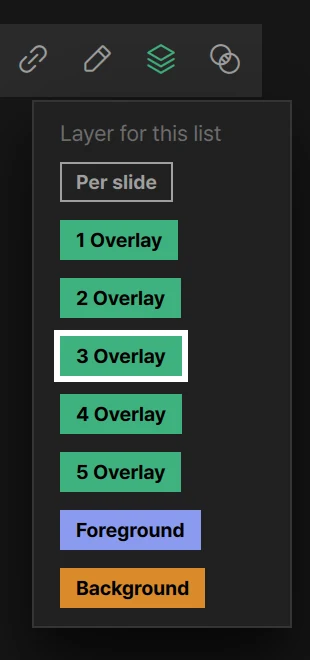
| Layer for this list | Sends every slide in this presentation to one layer | Per slide, or one layer | Per slide |
Crossfade and Fade out
Section titled “Crossfade and Fade out”These two work on all three kinds of layer — foreground, background and overlays. There is no separate fade for backgrounds or for overlays.
- Crossfade is used whenever something comes in: the next slide over the one on the foreground, a new background, an overlay appearing or replacing what was in its slot.
- Fade out is used whenever something is taken down: the × beside a layer in the layer column
(Clear this layer), CLEAR at the top of that column (Clear All), the red ■ under the
preview,
F1–F4(⌘1–⌘4/Ctrl+1–Ctrl+4), and an overlay that dismisses itself.
At 0 there is no fade — it switches at once.
Each slide uses the values of the presentation it comes from. If a cue sheet runs a lyrics presentation set to 0.8 seconds and then a video presentation set to 2 seconds, the video comes in over 2 seconds. When you take it down, it goes with the video presentation’s Fade out, whichever presentation you happen to be looking at.
How the layers stack and how to take them down is in Layers.
Auto-dismiss
Section titled “Auto-dismiss”Raise it above 0 and this presentation’s overlays take themselves down after that many seconds, using its Fade out. At 0 it reads Off, and overlays stay until you take them down. It only affects overlays — foreground and background slides stay where they are.
Layer for this list
Section titled “Layer for this list”Pick a layer and every slide in this presentation goes out on that layer. Use it for a presentation of name captions you always want on one overlay, or a presentation of looping videos you always want on the background.
The choices are listed in stacking order, top first: Per slide, then 1 Overlay to 5 Overlay, Foreground, Background. If you have named the overlays in Settings › Overlay names, the names appear instead (1 Logo).
While a layer is chosen:
- A chip with a lock and the layer name sits beside the presentation’s title. Click it to change the layer.
- The stacked-sheets button on the title row takes that layer’s colour.
- Layer chips on the cards are dimmed and can’t be clicked. They still show each slide’s own layer.
- A slide that can’t go on the chosen layer goes out on the foreground instead, and tells you once: This slide can’t go on that layer — showing it as the foreground.
- Music slides are not affected. They never go on a layer; they play as sound.
- Slides that this moves down to Background play silent there. Their own volume is kept, and comes back with Per slide.
Changing the layer does not move what is already on stage — it counts from the next slide you send out. The one exception: an overlay from this presentation that is no longer an overlay comes down with a fade, and you are told Cleared N overlay(s).
Following the defaults, or its own value
Section titled “Following the defaults, or its own value”A new presentation has no values of its own. Its Crossfade, Fade out and Auto-dismiss follow the defaults in Settings.
The moment you move a slider, that value becomes this presentation’s own — even if you set it to exactly the same number as the default. From then on, changing the defaults no longer moves it.
You can tell which is which:
| Following the defaults | Its own value | |
|---|---|---|
| The number at the end of the row | Dim | Solid, with a small round-arrow button (Reset to default) |
| The note at the bottom of the panel | Following the defaults. Change a value to make it this presentation’s own. | This presentation uses its own values — changing the defaults won’t affect it. (shown if any of the three is its own) |
| The two-circle button on the title row | Grey | Lit, if any of the three is its own |
To go back, press the round-arrow button on a row — that one value follows the defaults again. Reset to default at the bottom of the panel does it for all three. The window you open from the sidebar has the same buttons on each row.
Layer for this list has no default in Settings, so resetting does not touch it. To release it, choose Per slide.
Changing the defaults
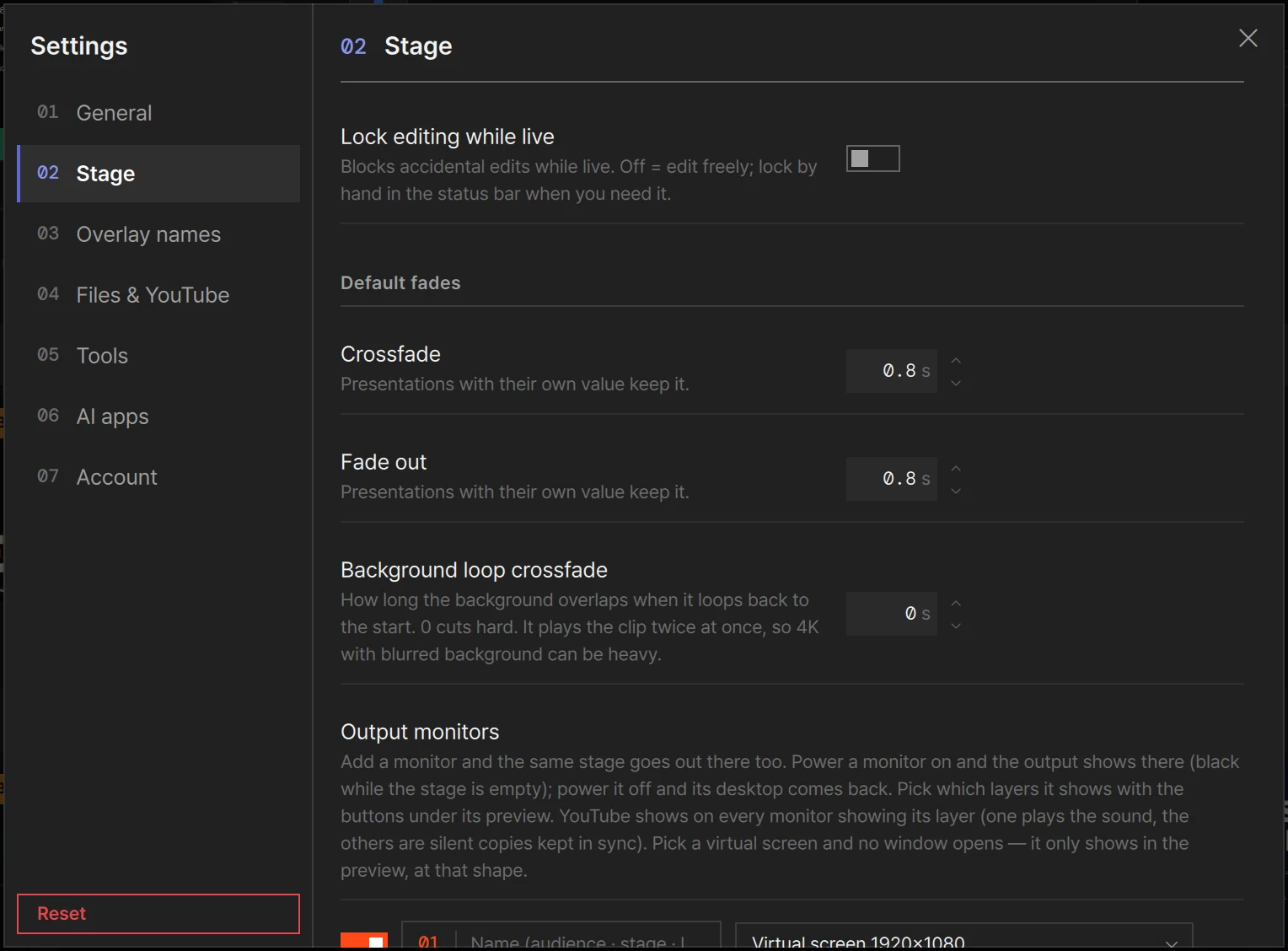
Section titled “Changing the defaults”The defaults live in Settings (the gear in the status bar) › Stage:
- Default fades › Crossfade and Fade out
- Auto-dismiss, at the very bottom of the page
Under each one it says Presentations with their own value keep it. For the rest of that window, see Settings.
Two neighbours on the same page are something else:
- Background loop crossfade is not about switching slides. It is how long a looping background video overlaps itself when it jumps back to its start. At 0 (the default) it cuts.
- Music has its own fades, under Music on the same page. See Music.
Changes here, Layer for this list included, can be undone with ⌘Z / Ctrl+Z. The notice
reads Undone — Presentation settings. One drag of a slider comes back in one step.
How libraries, presentations and cue sheets fit together is in Libraries and cue sheets. What happens on stage is in Screens and going live.