NDI® and Syphon
A screen does not have to be a monitor. Under Send to, the Network · apps group sends the stage as a video stream instead of opening a window: over NDI® to other computers on the same network or to another app on this one, and over Syphon to another app on the same Mac. Use them to feed a streaming computer running OBS or vMix, a switcher that takes NDI, or a projection-mapping app — with transparency if you like, so the receiver can lay the words over its own picture.
Sending a screen over NDI® or Syphon
Section titled “Sending a screen over NDI® or Syphon”- Open the Stage output window — the button under the second preview or, with only one screen, the small button in the control row under the stage preview (see The Stage output window).
- Press + Add screen, or open the row of a screen you already have.
- In Send to, under Network · apps, pick NDI® — to other computers or apps or Syphon — to another app on this Mac (on a Mac only). They are always there, whether anything is receiving or not.
- Set the name and the rest (below), and turn the power on.
The Send to list runs in groups: the screens and Blackmagic devices plugged in now, then Network · apps, then screens you have used that are not connected, then the virtual screens.
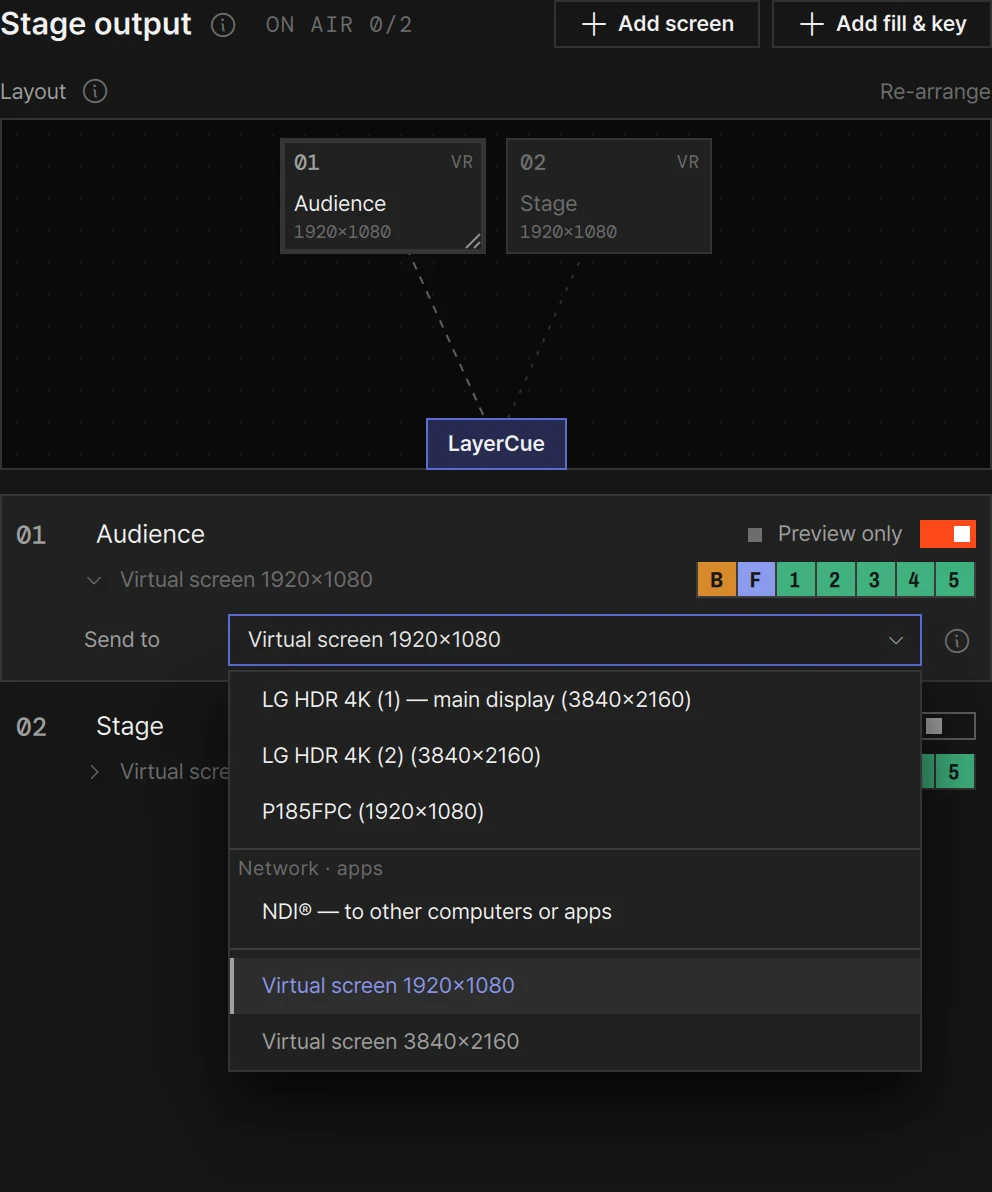
No window opens. While its power is on, the screen counts as on air — its number turns orange, and it counts in the window’s ON AIR figure and in the status bar’s on-air chip. The ⓘ beside Send to says where to pick the name in the receiving app.
The options
Section titled “The options”| Row | What it does |
|---|---|
| Name | What receivers see in their list, up to 48 characters. Left empty, it is LayerCue — and the screen’s name: LayerCue — Screen 2. Over NDI®, receivers see this computer’s name in front of it |
| Resolution | 1920×1080 to begin with, 3840×2160, 1280×720, or 1080×1920 (Portrait). There is no window to take a size from, so you choose the size LayerCue draws at |
| Frame rate | NDI® only: 25, 29.97 (to begin with), 30, 50, 59.94 or 60 |
| Alpha | Off · black: the stage on black, fully opaque. On · transparent: wherever nothing is up is transparent, so the receiver can lay the picture over its own. Syphon then offers Premultiplied or Straight; NDI® always sends straight alpha, so it has no choice to make |
| Audio | NDI® only: Off · On and a volume. On puts the stage sound (music and video) into the stream — see Sound and the meter |
With alpha on, the layers decide what is transparent. A background covers the whole screen, so with every layer on the receiver gets the whole picture. To lay only the words and overlays over the receiver’s own picture, turn off the layers you don’t need in the row’s cells, usually B — the rest goes out transparent, as for the key of a fill & key.
Layers shown works as on any screen: the B F 1 2 3 4 5 cells on the row’s second line pick what goes into the stream. See Multi-Output.
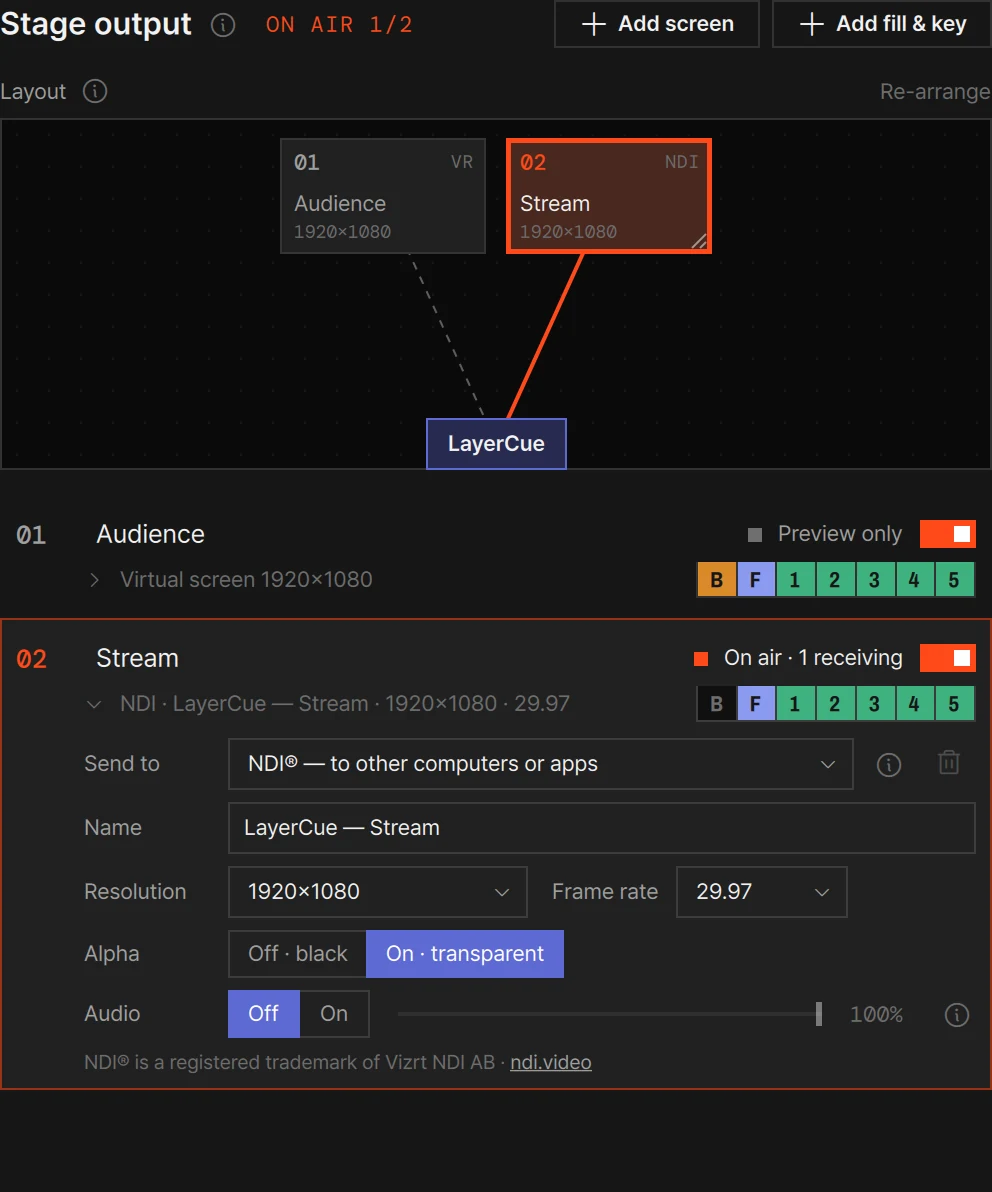
NDI® goes to other computers on the same network — OBS with an NDI plugin, vMix, a switcher or converter that takes NDI — and to other apps on this computer. In the receiving app, pick the name you set; this computer’s name comes in front of it.
- The receivers are counted. While it sends, the row reads On air · 2 receiving — how many receivers are taking the stream right now.
- Renaming starts a new stream. Change the name while it sends and receivers lose it; pick the new name in each of them. The frame rate can change while it sends.
- On a Mac, allow the local network. On macOS 15 and later, the first time LayerCue sends over NDI®, macOS asks whether LayerCue may use the local network. Allow it — otherwise other computers cannot find the stream. If you declined, turn LayerCue on under System Settings › Privacy & Security › Local Network.
- On Windows, allow private networks. The first time LayerCue sends over NDI®, the firewall may show a Windows Security Alert. Allow LayerCue on Private networks — otherwise other computers cannot find the stream (apps on this computer still can). If you declined, allow it under Windows Security › Firewall & network protection › Allow an app through firewall.
- It works the processor. Each frame is compressed on the computer’s CPU; 3840×2160, 50 to 60 frames a second and alpha cost the most. Turn alpha off when the receiver has no use for transparency — the stream gets lighter. For an app on this Mac that also takes Syphon, Syphon is lighter and faster.
- To check it, NDI Tools — free from ndi.video/tools — includes Studio Monitor, which shows any NDI stream on the network. LayerCue does not install it.
If LayerCue cannot send, it turns that screen’s power off and says why — for example Screen 2 — couldn’t send over NDI: followed by the NDI runtime is missing, NDI doesn’t run on this computer’s CPU, couldn’t create the NDI sender or couldn’t render the picture.
Syphon (Mac)
Section titled “Syphon (Mac)”Syphon hands the stage to another app on the same Mac — OBS (its Syphon Client source), Resolume, MadMapper and others. The picture passes straight from the graphics processor, without being copied or compressed, so it costs the CPU almost nothing.
- New frames only when the picture changes. The receiving app keeps showing the last one in between, so Syphon has no frame rate to set.
- The row tells you if an app is taking it: A receiving app is connected or No receiving app yet.
- Premultiplied or Straight depends on the receiving app. If the edges of letters look dark or fringed there, try the other.
If LayerCue cannot send, it turns that screen’s power off and says why — for example Screen 2 — couldn’t send over Syphon: followed by not available on this computer, couldn’t create the Syphon server or couldn’t render the picture.
Things to know
Section titled “Things to know”- Sound over NDI® only, when you turn it on. With Audio on, NDI® carries the stage sound too (it starts off). Syphon carries only the picture. Sound that is not sent leaves through the computer’s audio device chosen in the status bar — see Sound and the meter.
- Not for fill & key. A fill & key does not offer them: the transparency travels in the same stream, so no separate key is needed. For a switcher that takes fill and key on two inputs, see Fill & key.
Choosing screens and the power switch are in Screens and going live; the window that holds every screen is The Stage output window.
NDI® is a registered trademark of Vizrt NDI AB.