Fill & key and Blackmagic SDI
A video switcher, such as an ATEM, can lay LayerCue’s lyrics or name captions over the camera picture. For that it needs two signals: the fill, which is the picture itself, and the key, a black-and-white picture that tells the switcher where the fill shows — white where it does, black where the camera shows through. A fill & key makes both from the one stage, so whatever goes up on stage goes into the switcher with its edges and fades intact.
Adding a fill & key
Section titled “Adding a fill & key”Open the Stage output window — the button under the second preview or, with only one screen, the small button in the control row under the stage preview (see The Stage output window). Then press + Add fill & key beside the window’s title.
A new row appears in the list, already open. LayerCue picks where it goes to begin with:
- If a Blackmagic device that sends fill and key together is free, the fill & key goes out from that device alone.
- Otherwise it gets two outputs, one for the fill and one for the key, on plugged-in external screens that nothing else uses. If there are none, the row waits for you to pick.
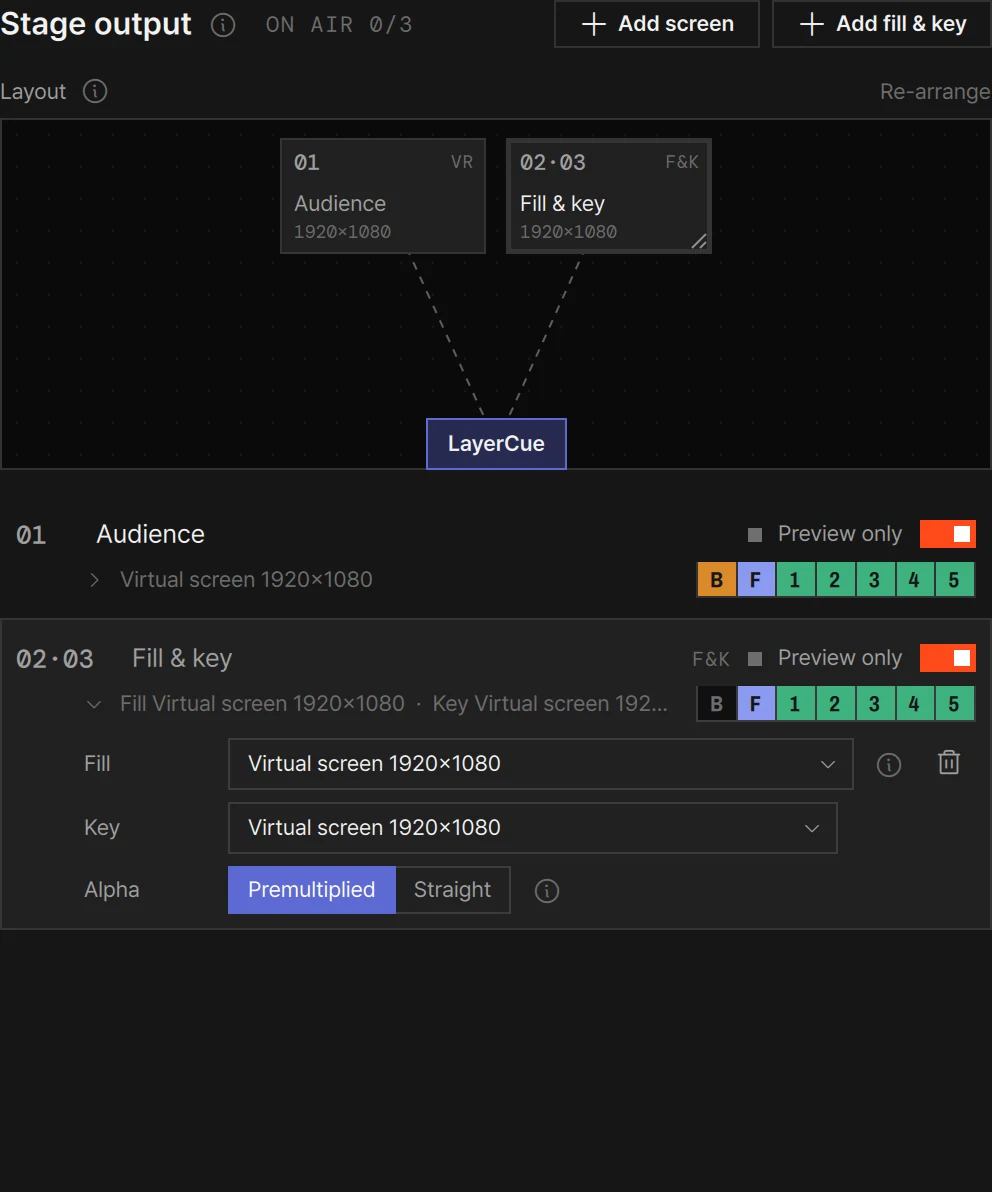
Folded, the row reads like a screen’s row: the number — or two numbers such as 02·03 when fill and key are two outputs — the name (Fill & key until you rename it with ✎), F&K, the state and one power switch for the pair. The line under it says where the fill and key go and holds the B F 1 2 3 4 5 cells. Click the row to open it.
| Row | What it does |
|---|---|
| Fill | Where the fill goes. What you pick here also decides how the pair goes out — see below. The ⓘ beside it explains the way in use; the trash button removes the whole fill & key |
| Key | Where the key goes. Only when fill and key are two outputs |
| SDI format | Only when a Blackmagic device is involved |
| Keying · Mix | Only when one device sends both |
| Alpha | Premultiplied or Straight |
| Audio | Only when one device sends both — puts the stage sound in with the fill (SDI A) |
What you pick for the fill decides the rest
Section titled “What you pick for the fill decides the rest”The Fill list is the Send to list of a screen without Network · apps: NDI® and Syphon carry transparency in a single stream, so they have no use for a separate key (see NDI® and Syphon).
- Pick a Blackmagic device that sends fill and key together, and the pair goes out from that device alone. The Key row disappears, and Keying and Mix appear.
- Pick anything else — a monitor, a virtual screen, or a device that cannot send a key — and fill and key are two outputs. The Key row appears, empty until you pick.
A fill & key starts with every layer on. Which layers to keep depends on what the switcher should show — see The key and the background.
From one Blackmagic device (Mac)
Section titled “From one Blackmagic device (Mac)”DeckLink cards and UltraStudio devices from Blackmagic Design send the stage over SDI. Install Blackmagic’s Desktop Video driver (from the Blackmagic Design support page); without it, LayerCue sees no devices. A device that is plugged in shows among the connected screens in every list, its name followed by · SDI.
With External (usual) keying, the device sends the fill on SDI A and the key on SDI B, locked together in hardware, so the two can never be a frame apart. Take both to the switcher and set its keyer’s fill and key sources to those two inputs. In the preview band, the tile of this output is headed Fill + Key.
| Row | What it does |
|---|---|
| SDI format | From 720p50 to 2160p30; 1080p29.97 to begin with. It must match the switcher, or the switcher will not take the signal |
| Keying | External (usual): the device sends fill and key separately and the switcher combines them — the usual setup. Internal: the device keys the picture over its own SDI input and sends one finished picture. Use it without a switcher; the input must be in the same format as the output |
| Mix | How strongly the picture is keyed in, from 0 to 100% (100% to begin with). It applies when you let go of the slider |
| Alpha | Match it to the switcher’s Pre-multiplied Key setting: Premultiplied when that is on, Straight when it is off |
| Audio | Off · On and a volume. On puts the stage sound into SDI A — see Sound and the meter |
While the output is on, changing SDI format, Keying or Mix, or turning Audio on or off, restarts the device’s output, so the signal drops for a moment. Set them before the show.
A Blackmagic device also works as an ordinary screen: pick it under Send to in a screen’s row and that screen goes out over SDI instead of opening a window, with SDI format and Audio rows of its own. YouTube goes out through the device too.
If the device does not start
Section titled “If the device does not start”When a Blackmagic output cannot start, LayerCue turns its power off and says why — for example Screen 2 — couldn’t start the Blackmagic output: (or the name you gave it), followed by one of these.
| The reason | What to check |
|---|---|
| the device isn’t connected | The cable, and that Desktop Video sees the device |
| the device can’t send the chosen SDI format | Pick another SDI format |
| this device can’t do fill + key | Pick something else for the fill, so that fill and key go out on two outputs |
| another app (Media Express etc.) may be using it | Quit the other app, then turn the power on again |
| couldn’t allocate frame memory · playback didn’t start · couldn’t render the picture | Turn the power on again; if it keeps failing, restart LayerCue |
On two outputs
Section titled “On two outputs”Fill and key can also go out on two ordinary outputs — two monitor connections into the switcher, for example, or a virtual screen while you try it out. This works on Windows as well as on a Mac.
- The two share their layers, power and resolution. Change a cell or the power on one side, and the other follows; with a Blackmagic device on one side, one SDI format serves both. Out of step, the switcher would show holes.
- The stage is drawn once for both. When fill and key are both screens, LayerCue draws each frame once and sends the same frame to both windows, so they always show the same moment — in a fade or a video too. What can remain is the difference in when the two screens refresh, under one frame. When it has to be exact, send from one device.
- The key is drawn at the fill’s shape. If the two screens differ, the row warns: The two outputs have different shapes — the key is drawn at the fill’s shape (the rest is black). Feed the switcher one resolution.
- Alpha works as above. Keying and Mix belong to a device’s keyer, so they are not offered here.
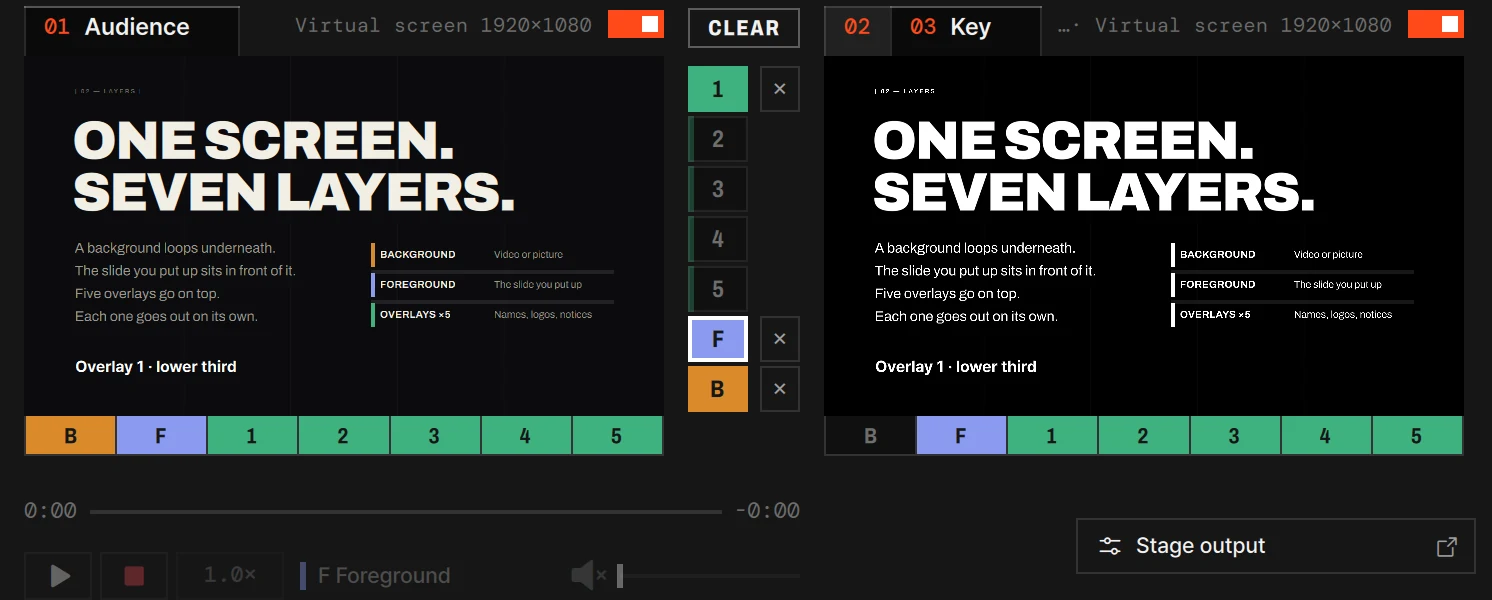
In the preview band, the tiles are headed Fill and Key, and the key’s tile shows the key in black and white — what the switcher will get.
The key and the background
Section titled “The key and the background”The key is white wherever something is drawn and black where nothing is, and the switcher puts LayerCue in where the key is white. So the layers you leave on decide how much of the picture LayerCue covers. A new fill & key starts with every layer on.
- The whole picture — for a main screen that shows LayerCue full frame, background and all, leave every layer on. The background fills the frame, so the key is white all over and the switcher shows the LayerCue picture as it is.
- Only titles or lyrics over the camera — turn off the layers you don’t need in the row’s cells, usually B. Only the layers you keep are keyed in; the rest is transparent and the camera shows through.
Things to know
Section titled “Things to know”- Sound over SDI, when you turn it on. Turn on Audio in a row that goes out through a device and the stage sound rides along (it starts off). A fill & key on two outputs (two monitors) has no Audio — its sound leaves through the computer’s audio device chosen in the status bar. See Sound and the meter.
- Not connected. While the fill or the key is unplugged, the row says not connected, its power switch is locked, and only the Fill and Key pickers work. A pair that was on when it was unplugged goes out again when you plug it back in.
- Removing. The trash button in the Fill row removes the fill and the key together. It is dimmed while the pair is on air: On air — turn its power off first.
Choosing screens and the power switch are in Screens and going live; the window that holds every screen is The Stage output window.
NDI® is a registered trademark of Vizrt NDI AB.